iPhone App · Apple Photos
Change a Photo's Date on iPhone
Can You Change the Date of a Picture on iPhone?
Yes. On iPhone, open a photo in Photos, swipe up, and tap Adjust Date & Time. Scans carry the day you digitized them. Timeline Scan, the AI photo dating service, has an iPhone app that estimates each scan's real year and writes it into Apple Photos and the file's EXIF DateTimeOriginal.
- Free to scan your library
- Fixed in place, no duplicates
- Originals stay on your phone
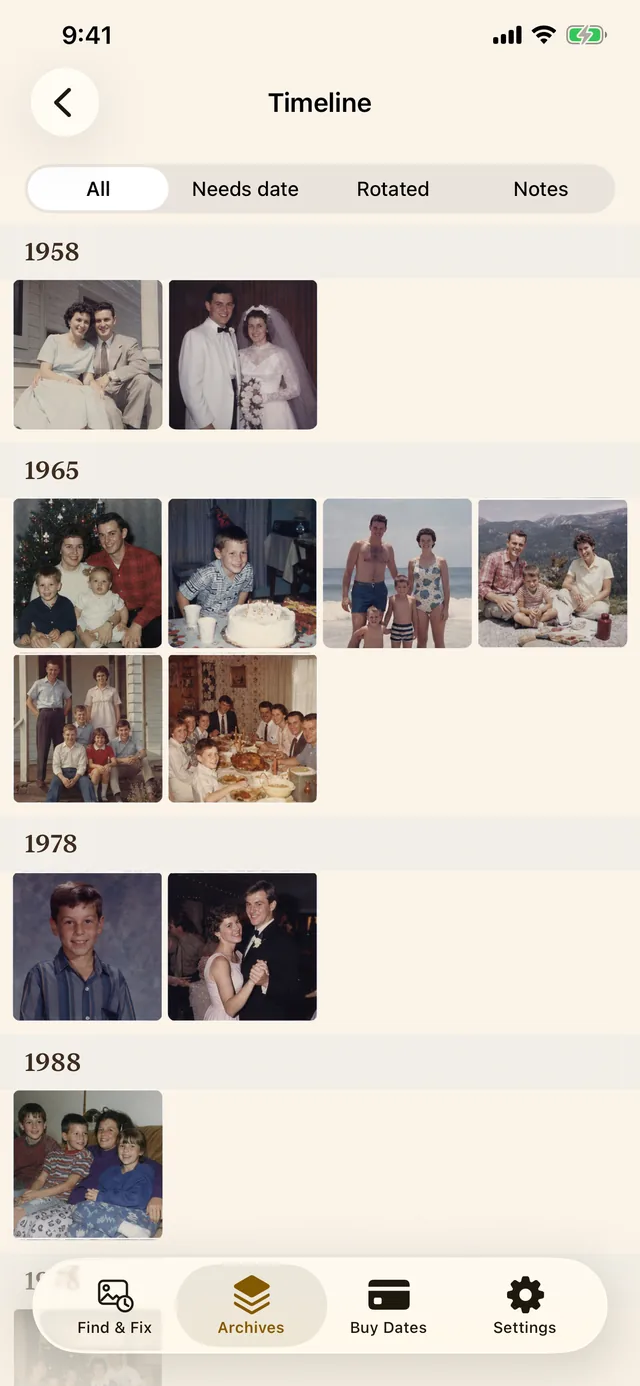
The problem, in one picture
Every Scan Lands on the Day You Scanned It
Today, in Photos





Forty years of family, filed under one afternoon.
After Timeline Scan
Each photo gets its own date, back in the right decade.
How it works
Three Taps on Your Phone
-
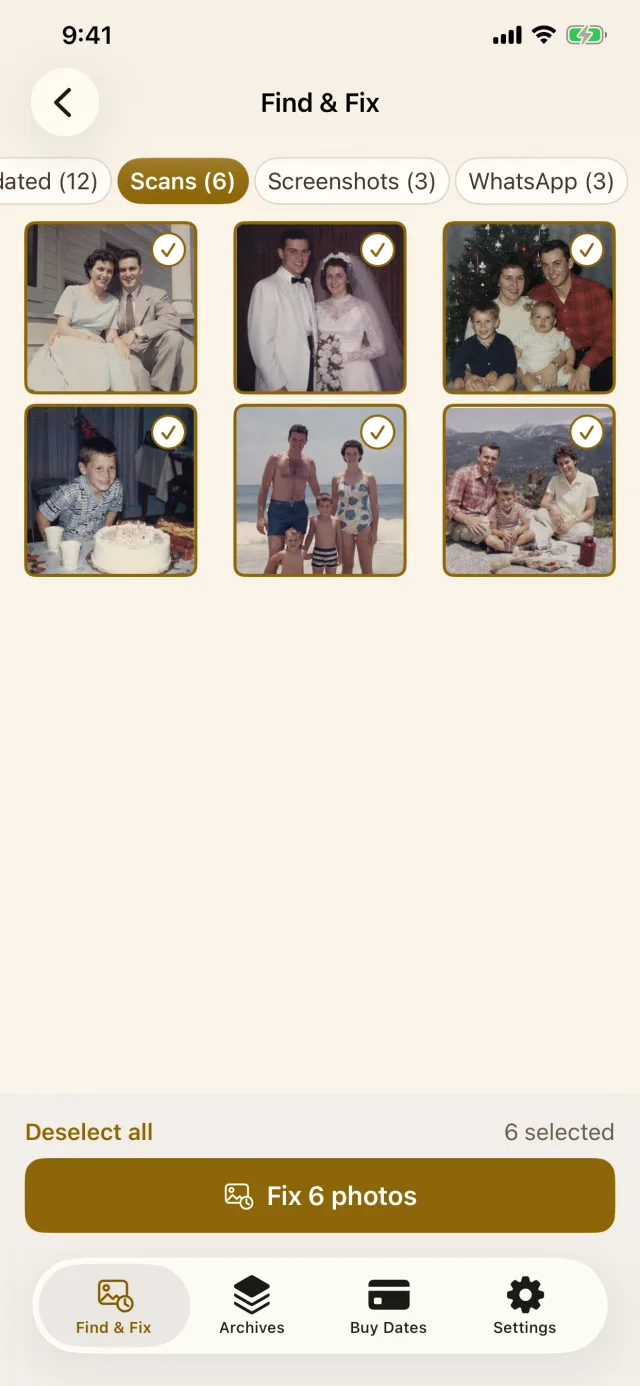
Find the stuck ones
Free, on your phone, before any account. Screenshots are set apart.
-
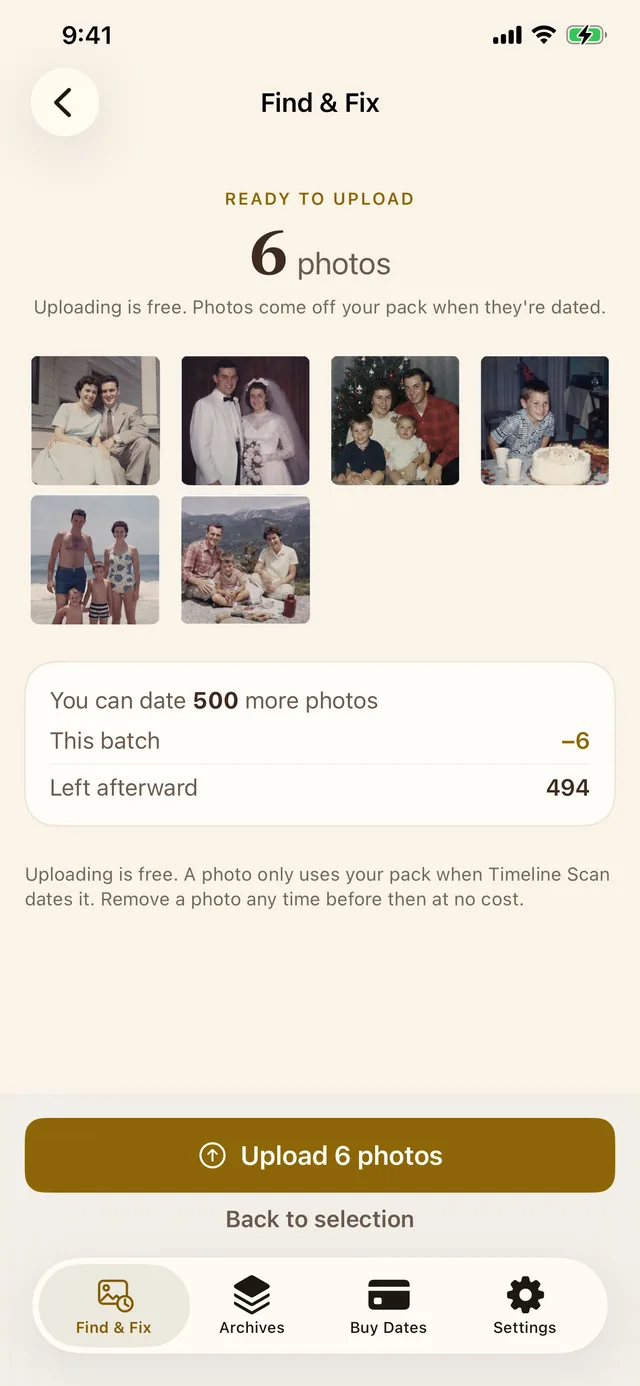
Upload and date them
See the batch and what it costs, then tap once.
-

Write them back in place
One tap, and the same photos carry the right dates.
Where each date comes from
- The clues: printed lab dates, handwriting on the back, film type, clothing, and the faces you have named all feed each estimate.
- Your say: open any photo to see the year we landed on and the handwriting we read off its back, and change the date yourself. Most people never need to.
Honest comparison
When Apple's Built-In Fix Is Enough
Apple's fix is enough when
- You already know the date
- Just a handful of photos
- A whole batch belongs on one day
You need more when
- A box of scans nobody has dated
- Each photo needs its own year
- The date must survive an export
| Photos app, one photo | Photos app, batch | Timeline Scan app | |
|---|---|---|---|
| Who works out the year | You | You | The app, from what is in and on the photo2 |
| 200 scans takes | 200 trips through the date picker | One pass, and all 200 get the one date you type1 | One review, then one tap, and each photo gets its own date |
| Date inside the file | No Only in Photos' database3 | No Same | Yes EXIF DateTimeOriginal, rewritten in place |
| Cost | Free | Free | Free to scan, then pay per photo dated |
Use both. Fix the dates you know by hand and let the app find the years nobody remembers. Photos can Revert any date it changed.1
Measured, not guessed
How Right Are the Dates?
When the print carries a date
- 98 to 100% in the right order
- 99 to 100% within one year
When there is no date, front or back
- 96% within five years
- >99% once family faces are tagged
-
Fixed in place
Only the date changes. No second copy, and the pixels are never touched.
-
Your originals stay put
Only a small preview is sent for dating, never to train AI models.
-
You approve every date
Each date shows the evidence behind it and stays editable.
Common questions
iPhone Photo Dates, Answered
How do I change the date on multiple photos on my iPhone?
In Photos, tap Select, tap the photos, then swipe up and choose Adjust Date & Time. Apple's iPhone User Guide puts it this way: “To change the date, time, or location of a batch of photos, tap Select, tap the thumbnails you want to change, then follow the steps above.”
Every photo you selected gets the one date you type. That suits a stack from one birthday party, not a box of scans: a 1958 print and a 1987 print would share one date, so by hand it is one photo at a time. The Timeline Scan app works out a separate date for each photo instead.
Why are my scanned photos all showing today's date?
Because a scanner records the day of the scan, not the day of the photo. Prints made before digital cameras carry no capture date, so Photos falls back to the file's creation date: the day you digitized it.
That is why prints from four decades pile up on one afternoon in your library. The full story is in the guide to fixing scanned photo dates.
Why are my iPhone photos not in chronological order?
Because some of them carry the wrong capture date. Camera shots get the right date automatically; scans, screenshots, saved messages and downloads are stamped with the day they landed on your phone, so they pile up under this year.
Correct those dates, by hand for a few or with the app for hundreds, and the timeline sorts itself out: Photos, Search and Memories all read the same field.
Does the corrected date get written into the photo file itself?
Yes. Timeline Scan writes both the date Apple Photos sorts by and the EXIF DateTimeOriginal inside the file, without re-encoding a single pixel. The date then survives an export, an AirDrop, or a move to another photo library.
A change made by hand in Photos is stored in the Photos database instead, which is why an exported unmodified original can still carry the old scan date.
Do my photos leave my phone?
Only a small preview of each photo you pick is sent, for dating. Your full-size originals stay on the phone, and the library scan runs entirely on the device, before you even make an account.
Photos are never used to train AI models and can be deleted at any time. Details are in the privacy policy.
What does the Timeline Scan iPhone app cost?
Downloading the app and scanning your library cost nothing. New accounts start with 50 free photos, no credit card. After that you buy dates in one-time packs, starting at $12 for 100 photos, with no subscription.
The balance works on the phone and on the web, so a pack bought in the app also covers photos on your computer. Full numbers are on the pricing page.
Not just the phone
Photos Somewhere Else?
The same dating runs on the web, for photos on a computer or a hard drive.
Put Your Scans Back in Their Years
Start with 50 free photos, no credit card required. Scanning your library costs nothing.
Get the iPhone AppSources
Where These Facts Come From
Show the three sources
- Apple, “See photo and video information on iPhone”, iPhone User Guide: the Adjust Date & Time steps, the batch instruction (tap Select, tap the thumbnails, then follow the single-photo steps), and Revert. The outcome of that batch path, the one date you type landing on every photo in the selection, is what the app does today; Apple documents the steps rather than the result.
- Timeline Scan, dating accuracy methodology: benchmark datasets, ground truth, and the measured ordering and within-one-year figures quoted above.
- Apple Support Community, “Changing EXIF Date in Photos for Mac”: an Adjust Date & Time change is recorded in the Photos database, so an exported unmodified original keeps the file's original date.
By Spencer Baker, founder of Timeline Scan · Last updated .
Apple, iPhone, and Apple Photos are trademarks of Apple Inc. The iPhone frames show real screenshots of the Timeline Scan app with sample photos. Timeline Scan is not affiliated with or endorsed by Apple.