
FrontBack Scanner · Application Help
Every Control, One Page
The everyday flow is four clicks: Preview, Scan, flip the photos, Scan. This page covers the rest: a missed photo, a print bigger than the glass, scans you already have, zoom, pairing by hand, and every shortcut.
 Free on the Mac App Store too, where it updates with your other apps. The download has its own Check for Updates.
Orientation
The Window at a Glance

Toolbar (top). Scanner picker, Preview, Detect Regions with its Auto lock, Pair Backs, and a status line saying what just happened.
Bed (left). A live preview of the glass. Each photo found gets an amber box, a name tag and its own handles.
Sidebar (right). Output settings, the draw-side switch, the Scan button, one row per box, and your latest saves.
Zoom cluster (bottom right of the bed). Reads FIT, or the zoom level when you are in close.
Regions
Boxes on the Bed
Auto-detect draws the boxes. You can change every one by hand.

Precision
Zoom & Pan the Bed
Zoom in to nudge a crop edge by a hair, up to 800%.
Detection
Auto-Detect, Locked or Manual
The Detect Regions control
- Detect Regions boxes every photo on the preview, with its tilt and name. It replaces any boxes already on the bed.
- The lock beside it: Auto (the control glows amber) re-runs detection after every preview. Manual leaves your hand-drawn boxes alone. The app remembers your choice.
- Back sides too: with the draw side on BACK, it looks for handwriting instead of photo edges, so faint pencil notes get boxed.

Missed one? Double-click it.
- Double-click the spot where the print lies (or right-click it and choose Find photo here).
- It looks right there, which catches the pale, faded prints a full-bed pass can miss.
- You always get a box. If it finds nothing for sure, a standard box lands on your click, ready to adjust.
- Already boxed? It selects that box instead of adding a second.
Auto-orientation
Sideways Photos Fix Themselves
Lay photos any way they land. Each print is checked and saved right side up (99.8% accurate in our benchmarks).
- The ↻ badge. A sideways or upside-down print gets a badge like ↻180° AUTO and previews upright on the bed, so you see what will be saved.
- Trust it or veto it. Click the badge (or right-click and choose “Keep original orientation”) to save the photo as it lies. Click again to undo.
- Unsure? It leaves the photo as it is rather than guess.
- Always current. Moving a photo or a new preview re-checks it. The sidebar row shows the pending turn as an amber ↻.

Fronts & backs
Pairing Fronts With Backs
How to scan front and back: scan the fronts, flip each photo where it lies, scan again. Each back pairs with its front by position.
The draw side
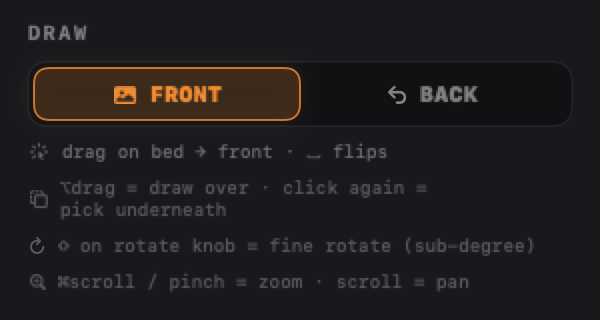
- The FRONT / BACK switch in the sidebar sets the side for new boxes, drawn or detected.
- ␣ Space flips the selected box between front and back. With nothing selected, it flips the draw side.
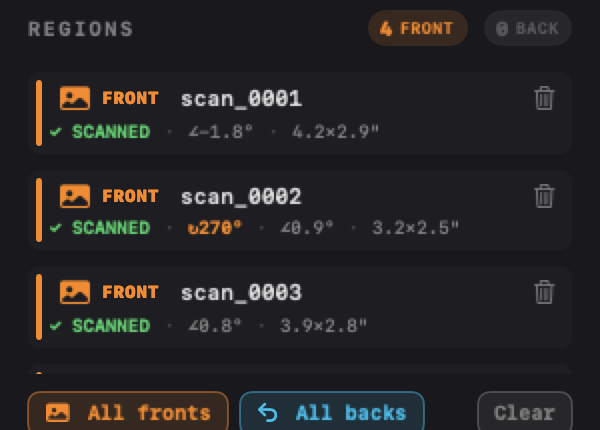
- All fronts, All backs and Clear (under the region list) change or clear the whole bed in one click.

Rewiring a pair by hand
- Right-click a box and choose Link to front… (or Link to back…), then click its partner. Esc cancels.
- Or in the sidebar: click a row’s FRONT / BACK capsule to flip its side, or link a back to a front or a saved file.
Pairing mode
- After scanning fronts and previewing the flipped pile, click Pair Backs. Fronts show on the left, backs on the right, each pair in one color. Gray means unmatched.
- Hover a front to trace its link. Drag from a front onto a back to re-pair them. ALL LINKS shows every pair at once.

Oversized mode
Photos Bigger Than the Glass
An 11 × 14 portrait, a school panorama, an album page: Oversized stitches overlapping passes into one photo, with no visible seam.
Click Oversized in the toolbar. Lay any part of the print on the glass, press Preview, then Scan & Stitch.
Move to the next part, keeping 1 to 2 inches overlapping (more for thick prints). Press Preview.
The new part appears as a ghost and snaps into place, even if crooked or turned. Adjust it if needed, then Scan & Stitch.
Finish & Save writes one full-resolution photo. For an album page, Chop It Up saves each mounted photo as its own file.
| Drag the ghost | Place the new part by hand; it snaps from there |
| Arrow keys | Nudge the ghost (⇧ = coarse) |
| R / ⇧R | Turn the incoming section 90° |
| ⏎ Return | Scan & Stitch the aligned section |
| Re-align | Search the whole photo again for the best match |
| Undo Pass / Start Over | Remove the last pass, or all of them |
Passes are exposure-matched and blended. Leaving Oversized keeps them until you finish or start over.
Files instead of the glass
Splitting Scans You Already Have
Open old whole-bed scans, one file or a whole folder, and every tool on this page works on them. No scanner needed.
File ▸ Open Bed Scan… (⌘O) for one image or several, or Open Folder of Bed Scans… (⇧⌘O). Or drag them onto the window.
With Auto on, each file boxes itself as it loads. Otherwise click Detect Regions. Every gesture above still works.
Click Split N Photos & Next (⏎ Return). Each box saves upright at full resolution, and the next scan opens already boxed.
The toolbar shows FILES 3 OF 40; its menu opens other files or returns to the scanner. ‹ and › step through the stack and keep your box changes.
Your originals are read-only. New files go to your output folder, never over a source scan.
Original pixels. Nothing is resampled and the DPI carries over. Resolution and color settings do not apply.
Backs pair the same way. Open the sheet of backs and set the draw side to BACK (or click All backs). Each saves as its front’s _b, and Pair Backs works across the two files.
Auto-orientation still runs, badge and veto included.
One folder, one stack: the images directly inside it, in natural filename order. Sub-folders are skipped.
Oversized needs the scanner. Return to Scanner brings back your live preview and its boxes.
| ⌘O | Open a bed scan, or several |
| ⇧⌘O | Open a folder as an ordered queue |
| Drag onto the window | The same, from the Finder or File Explorer |
| ⏎ Return | Split this scan and load the next |
| ‹ / › | Step back and forward through the queue |
| FILES n OF m | Open different files, or return to the scanner |
Output
Scanning & Your Files
- Preview: a quick, low-resolution look at the whole bed. The scanner’s own button works too.
- Scan N Regions: one full-quality pass, then each box saved losslessly as its own file, identical to scanning that photo alone.
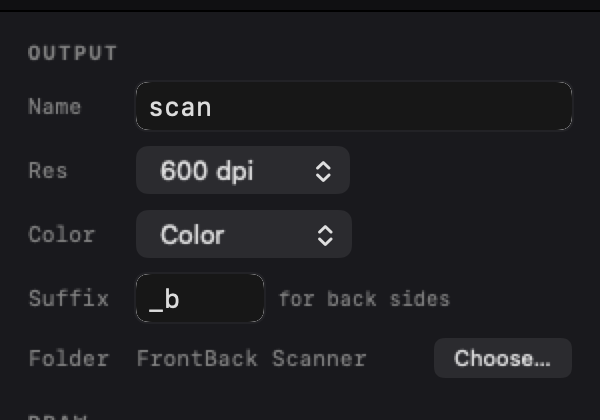
- Output settings (pictured): resolution up to full optical DPI, Color / Grayscale / B&W, and the back suffix (
_b). JPEGs open at real print size. - Numbering picks up where the folder leaves off, after the highest
name_NNNNfile. Moved photos out? Type the next number (say137) into Start. Files in the folder are never overwritten. - Saved means saved. Saved boxes get green checks, and the bed shows a SCANNED seal when all are done. Moving a photo or a new preview clears them.
- LAST SAVE and HISTORY thumbnails at the bottom of the sidebar open the file.
Reference
Keyboard & Mouse Cheat Sheet
| ⌫ Delete | Remove the selected box |
| ␣ Space | Flip the selected box front ↔ back, or flip the draw side |
| Esc | Cancel an in-progress link |
| ⇧ Shift + rotate knob | Fine rotate, geared 8:1, no snapping |
| ⌥ Option + drag | Draw a new box on top of another |
| ⌘ Cmd + scroll, or pinch | Zoom at the cursor, up to 800% |
| Scroll | Pan the bed while zoomed in |
| Two-finger double-tap | Zoom to 250%, or back to fit |
| Click again | Select the box underneath a stack |
| Double-click empty bed | Find and box a photo detection missed |
| Right-click a box | Flip side, keep original orientation, link to a partner, delete |
| Right-click empty bed | Find photo here |
| R / ⇧R · oversized | Turn the incoming section 90° |
| ⏎ Return · oversized | Scan & Stitch the aligned section |
| Arrow keys · oversized | Nudge the ghost (⇧ = coarse) |
| ⌘O / ⇧⌘O | Open scans, or a folder of them, to split |
| Drag files onto the window | Open them as a queue |
| ⏎ Return · files | Split this scan and open the next |
Now Point It at the Shoebox
Free, private, and fast.
Free on the Mac App Store too: nothing to drag, and it updates itself.Then let Timeline Scan put every photo in order
Why the backs matter: the FrontBack Scanner tour and our scanning best practices.
Saved you hours? Leave a small tip to support development.