Google Photos dates wrong?
Fix the Wrong Date in Google Photos (Even 1,000+ Scans)
Google Photos sorts by the date saved inside each file, and a scan only knows the day it was scanned. Timeline Scan works out each photo’s real year, writes it into the file, and sends your photos to Google Photos in order.
Todaythe scan day
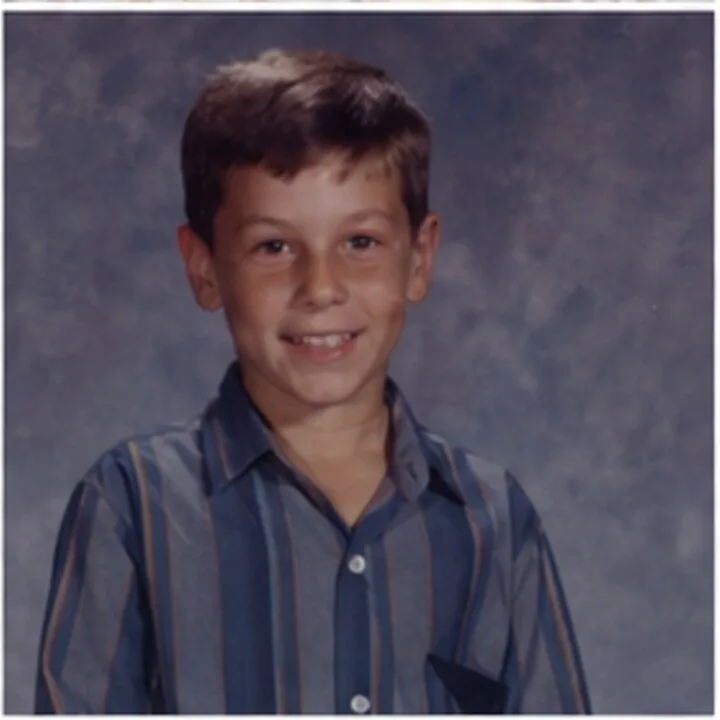
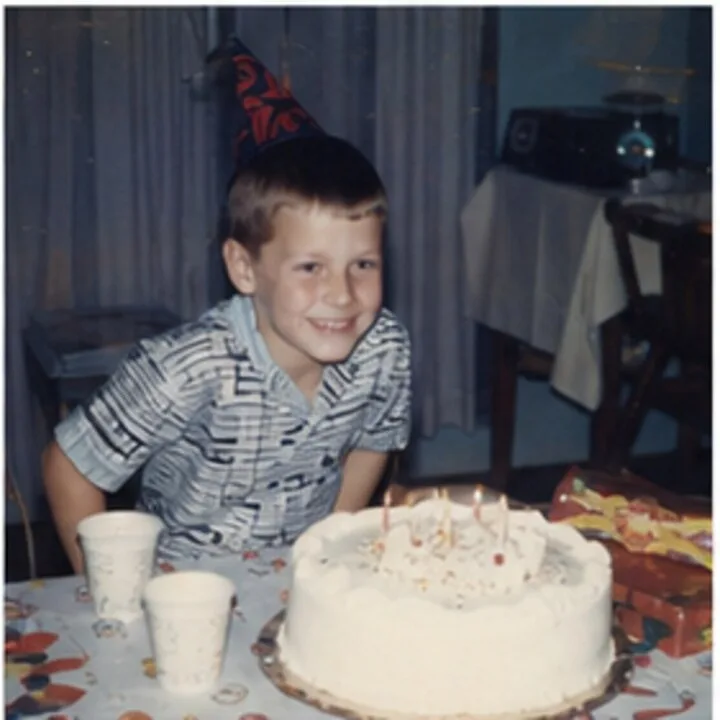
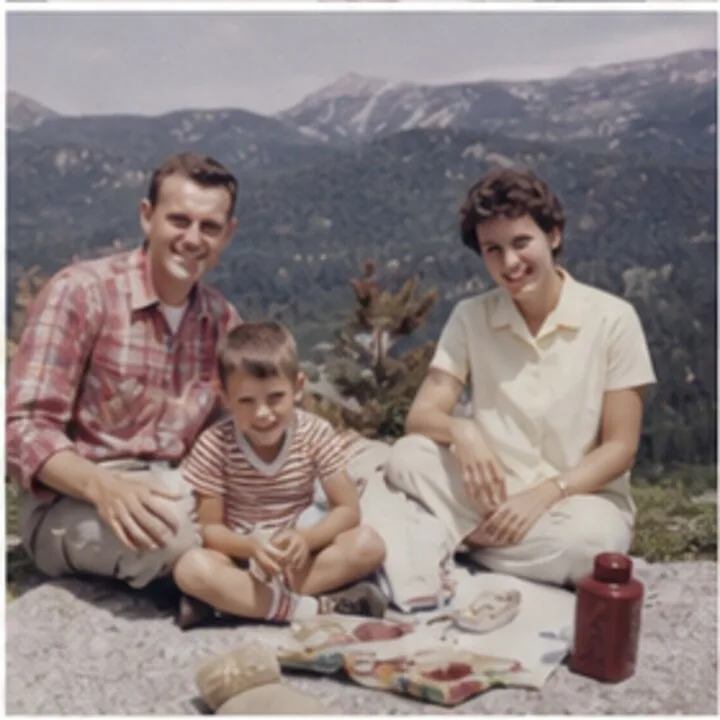
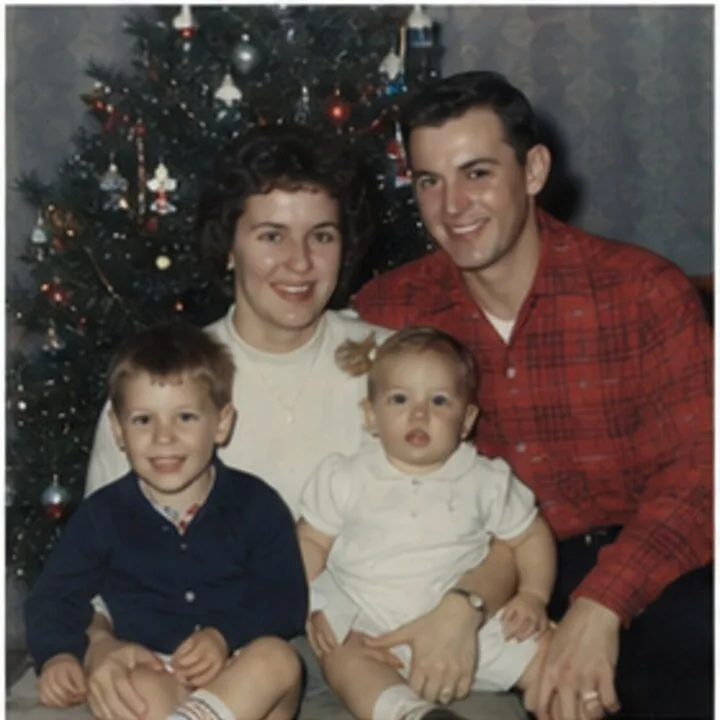
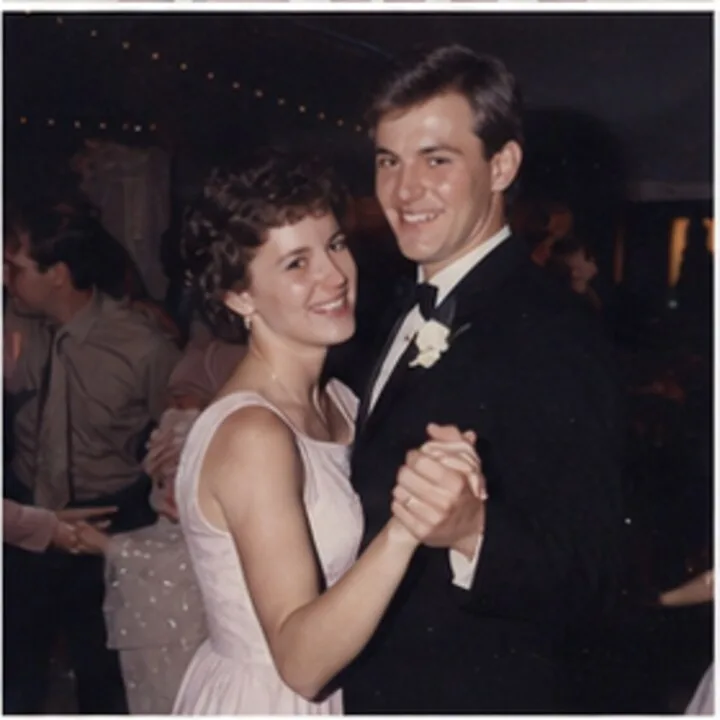
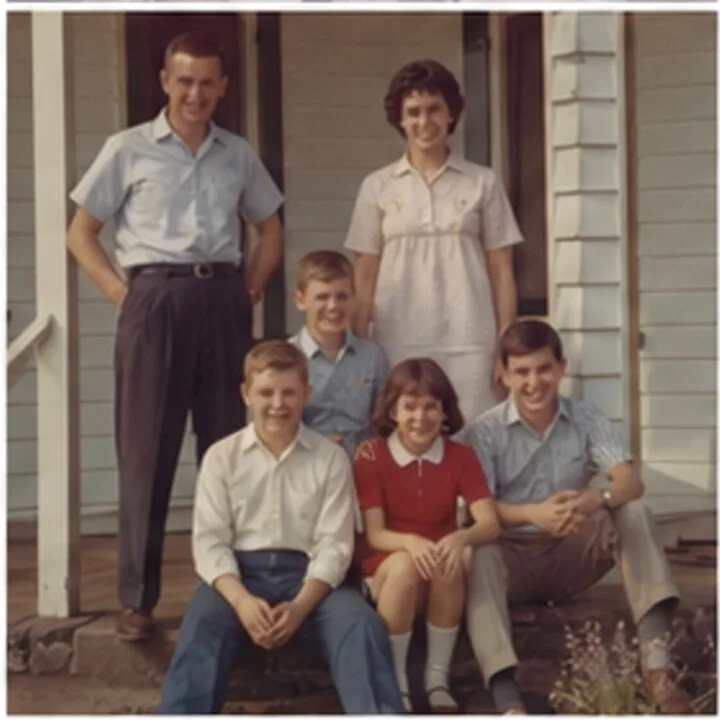
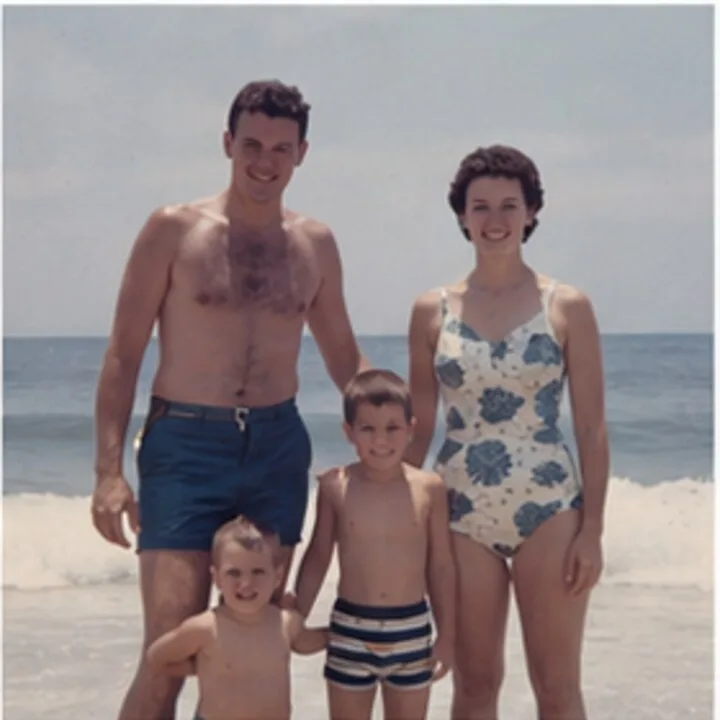
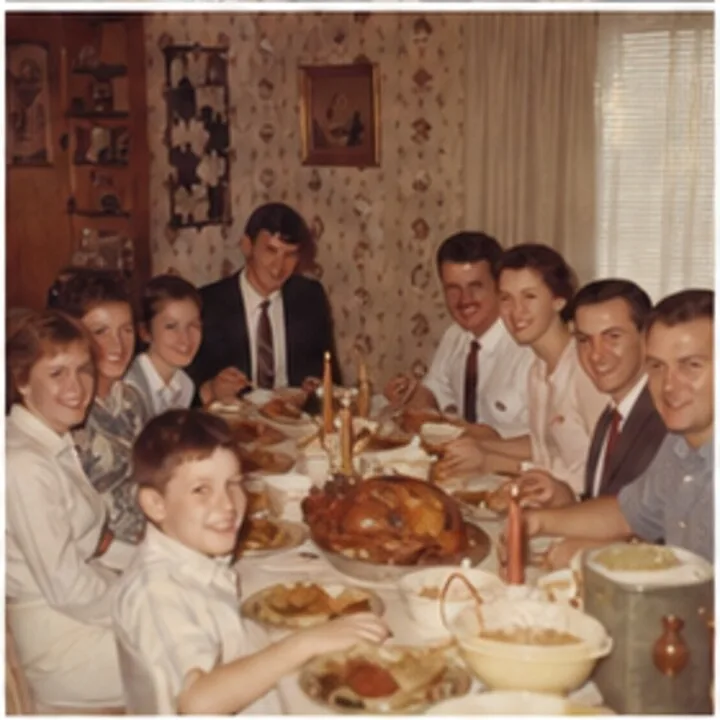
Decades of memories, filed under last Tuesday.
1962
1974
1987
Same photos, back in their years.
- Free to try
- No credit card to start
- Real dates written into the files
- Hundreds of scans in one pass
How Timeline Scan fixes it
Real Dates, Written Into Your Files
-
Upload everything
Fronts and backs, nothing sorted or renamed first.
-
AI finds the real year
Handwriting on the back, lab stamps, clues in the picture. You review; we write the date into each file.
-
Into Google Photos, in order
One click sends the fixed files straight to your library. Nothing to re-upload.
Already uploaded the misdated scans? Delete them first: fixed files arrive as new photos. Rather do it by hand? Compare all 3 ways.
Why it happens
Why Every Scan Lands on the Wrong Date
-
Paper has no date a computer can read
A note on the back or an orange corner stamp is ink, not data.
-
The scanner stamps scan day
A scan is a brand-new file, so its capture date[3] is the moment you scanned it.
-
Google Photos believes the file
It sorts by that date[2], so a 1975 print files itself under today.
-
Todayor the day you uploaded
The file carries the scan date, or none at all[2].
Fix them all at once -
Jan 1, 1970the computer epoch
The date field is empty, and “no date” displays as 1970.
Fix them all at once -
Off by hoursright day, wrong time
A camera clock or timezone slip. The built-in editor handles this one[1].
Edit it by hand
Your options
3 Ways to Fix Scanned Photo Dates in Google Photos
All three work. Only two of them fix your actual files.
-
Edit dates in Google Photos
A few photos whose dates you know
- No: Finds the dates for you
- Partly: Whole archive at once one event at a time[1]
- No: Written into your files display-only, by Google’s own note[1]
- No: Survives a download or a new app
Free[1]
The steps -
Timeline Tagger
You know the dates, or the backs show them
- No: Finds the dates for you
- Partly: Whole archive at once one photo at a time, ten seconds each
- Yes: Written into your files
- Yes: Survives a download or a new app
Free, Mac and Windows
How to use it -
Built for this
Timeline Scan
A shoebox of scans and nobody remembers the years
- Yes: Finds the dates for you backs, lab stamps, visual clues; you review
- Yes: Whole archive at once upload everything, review one timeline
- Yes: Written into your files standard EXIF/XMP capture-date fields
- Yes: Survives a download or a new app Google Photos, Immich, or a folder download
Free trial, then per-photo pricing
Try Photos Free
Fix #1 Edit the dates by hand in Google Photos
- On photos.google.com, select the photos from one event.
- Click More (the three-dot menu), then Edit date & time[1].
- Choose Shift dates & times (keeps the gaps) or Set one date & time (one date for all)[1].
- Save, and repeat for the next event. On a phone: More → About → Edit next to the date.
Edit date & time
The catch, in Google’s own words: “the edited date and time displays in Google Photos. But if you share the photo to other apps or download it, the photo may show the original date and time saved by your camera.”[1]
Fix #2 Write the dates yourself with Timeline Tagger
The free Timeline Tagger app for Mac and Windows writes the date into each file for good. Before you upload:
- Point it at the folder your scans landed in.
- See each photo beside its scanned back.
- Type the year (month and day are optional) and press Return.
- Writes the real EXIF, IPTC and XMP date fields, so the date survives in any app
- Free, with no account and nothing uploaded
- You still work out and type every date, one photo at a time
- Fix files before they first touch Google Photos, or the re-upload becomes a duplicate
Stuck on one print with no clue? Our free tool answers what year was this photo taken, one photo at a time.
Common questions
Scanned Photo Dates in Google Photos: FAQ
Why do all my scanned photos show today's date in Google Photos?
Because a scan is a brand-new file, so the only date inside it is the scan date, or none at all. Google Photos sorts by that capture date, or by timestamps like the upload day when there is none[2]. Either way, a photo from 1975 files itself under the day you scanned or uploaded it.
Why does a photo show January 1, 1970 in Google Photos?
Because the file's date field is empty or zeroed out. Computers count time from January 1, 1970 (the Unix epoch), so an app that reads the empty date as a number gets zero, which displays as that day.
The fix is the same as for any wrong date: write a real capture date into the file, or edit the date inside Google Photos.
How do I change the date of a scanned photo in Google Photos?
On photos.google.com, select the photo, click More (the three-dot menu), choose Edit date & time, and enter the correct date[1]. In the phone apps, open the photo, tap More, then About, and tap Edit next to the date.
Google's own caveat: the edit changes what Google Photos shows, but a downloaded or shared file may still show the original date saved by your camera or scanner[1].
Can I fix the dates of many scanned photos at once in Google Photos?
Partly. On the web, select the photos and choose Edit date & time, then Shift dates & times (keeps the spacing between photos) or Set one date & time (one date for all)[1]. You still need each group's real date, one group at a time.
To fix the files before upload: the free Timeline Tagger app for known dates, one photo at a time (from a terminal, ExifTool can stamp a folder that shares one date), or Timeline Scan to estimate unknown dates automatically.
If I edit dates inside Google Photos, are my actual photo files fixed?
No. Google's help page states that “the edited date and time displays in Google Photos. But if you share the photo to other apps or download it, the photo may show the original date and time saved by your camera.”[1]
The fix lives in Google's database, not in your files: download the photos, switch apps or restore a backup, and the wrong dates come back. Correcting the metadata inside the files is the only fix that travels with your photos.
What's the best way to fix scanned photo dates before uploading to Google Photos?
Write the real capture date into each file's EXIF metadata before you upload. If you know the dates, the free Timeline Tagger app for Mac and Windows shows each scan beside its back; you type the year and it writes the date into the file, one photo at a time.
Don't know the dates? Timeline Scan estimates them from handwriting on the backs, lab-printed dates and visual clues, writes them into the files, and can add the photos to Google Photos already in date order.
Or keep them in Family Library ($39 a year or a small monthly fee), a hosted family timeline where up to 20 invited relatives can browse and help add names, dates, places and notes.
Will re-uploading fixed files create duplicates in Google Photos?
It can. Google Photos only recognizes exact copies as duplicates, and a file with corrected metadata is no longer byte-identical, so it uploads as a new photo beside the misdated one. Delete the misdated uploads before re-uploading corrected files.
Using Timeline Scan's Google Photos export? Upload your raw scans to Timeline Scan first, and let the export be the photos' first arrival in Google Photos: then there's nothing to clean up.
Photos on an iPhone? Our app fixes them in place in Apple Photos: see changing a photo’s date on iPhone. Weighing tools? See the MyHeritage PhotoDater comparison.
Show your work
Sources
The 3 sources behind this page
- Google Photos Help: “Edit your photos” (Computer tab; steps and quoted wording re-verified August 18, 2026). Documents the “Edit date & time” steps, the multi-select “Shift dates & times” / “Set one date & time” options, and the note that an edited date displays in Google Photos while a downloaded or shared file “may show the original date and time saved by your camera.”
- Google Photos Community: “Why does Google Photos change the dates of my pictures to ‘Today’ when uploaded?” (accessed July 6, 2026): one of many long-running threads where Product Experts explain that photos without a capture date in their metadata are sorted by other timestamps, such as the upload date.
- CIPA standard DC-008 (Exif), Standardization: Camera & Imaging Products Association. Defines the Exif capture-date field
DateTimeOriginalas “the date and time when the original image data was generated.” For a scanned print, the image data is generated by the scanner, on scan day.
Google Photos behavior and steps on this page were checked against Google's public help pages on August 18, 2026. If something here has gone out of date, tell us and we'll correct it.
Google Photos™ is a trademark of Google LLC. Timeline Scan is an independent service and is not affiliated with, endorsed by, or sponsored by Google. Library pictures use sample photos; the Fix #1 dialog is an illustration, not a Google screenshot.
Get Your Timeline in Order
Start with free photos, no credit card. Watch your own scans get their real dates written in, then go to Google Photos in order.
Try Photos Free