Sixty Years of Photos, Filed Under Scan Day
Get Scanned Photos in the Right Order in Immich (2026)
Every print from 1962 to 1999 sits at the top of your Immich timeline, filed under the day the scanner ran. Here are three fixes, including one that works in place with no re-uploading.
2026scan day
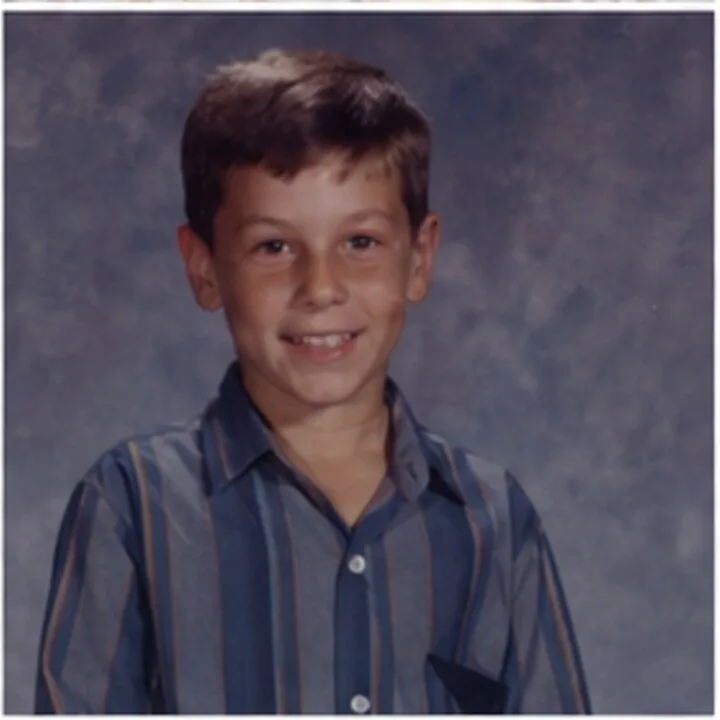
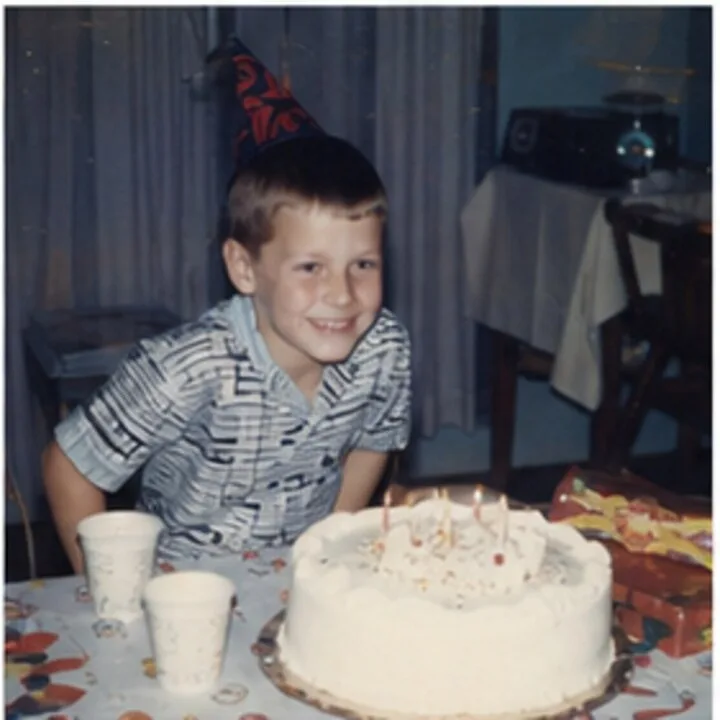
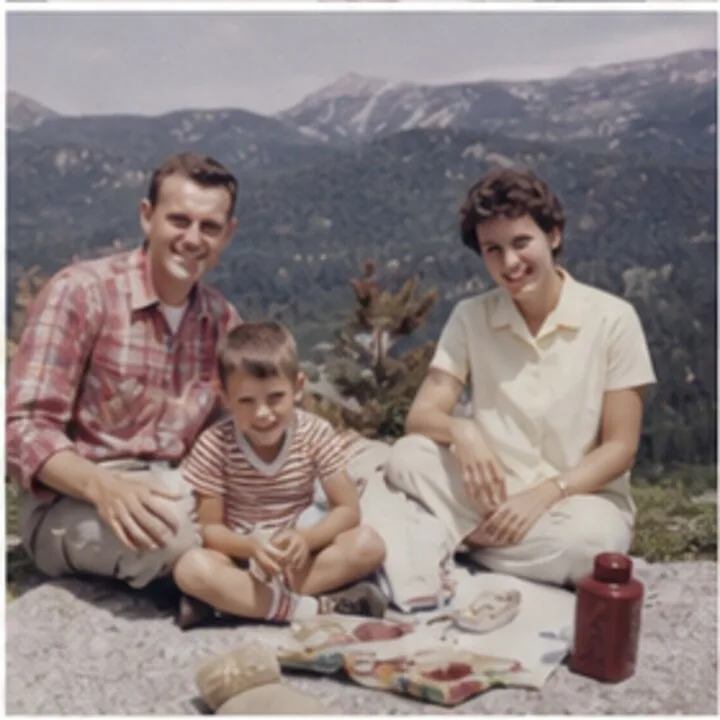
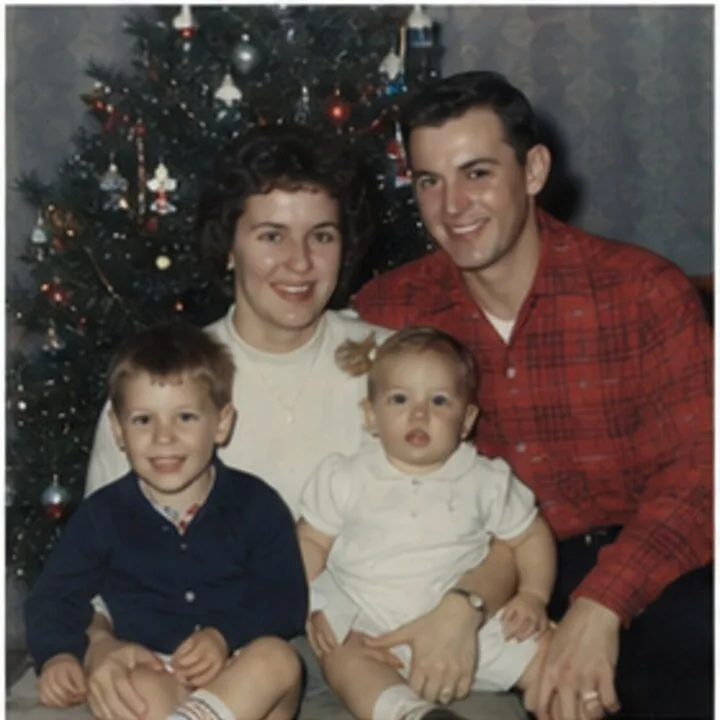
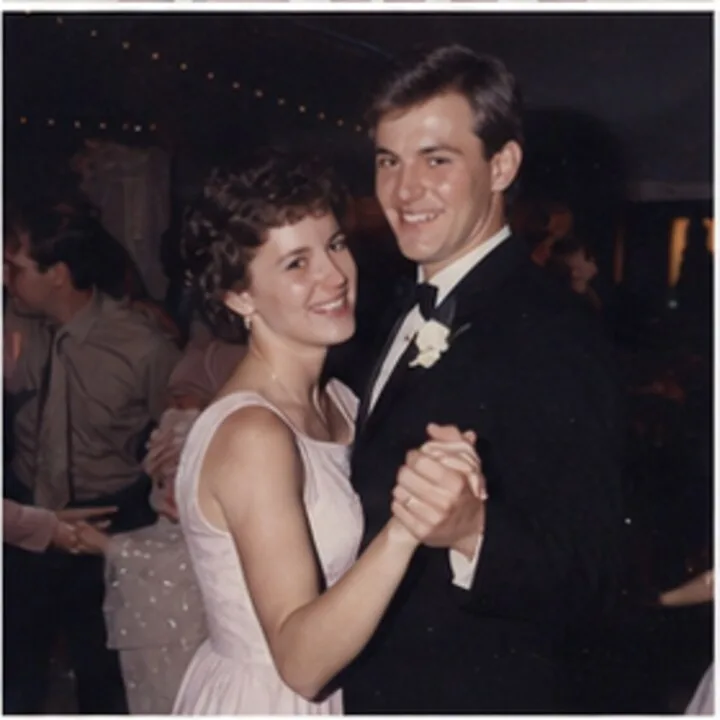
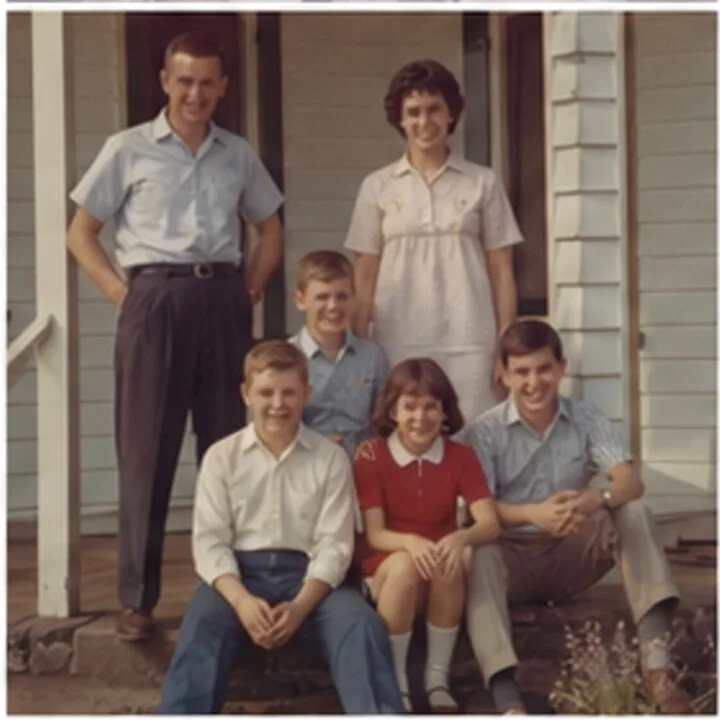
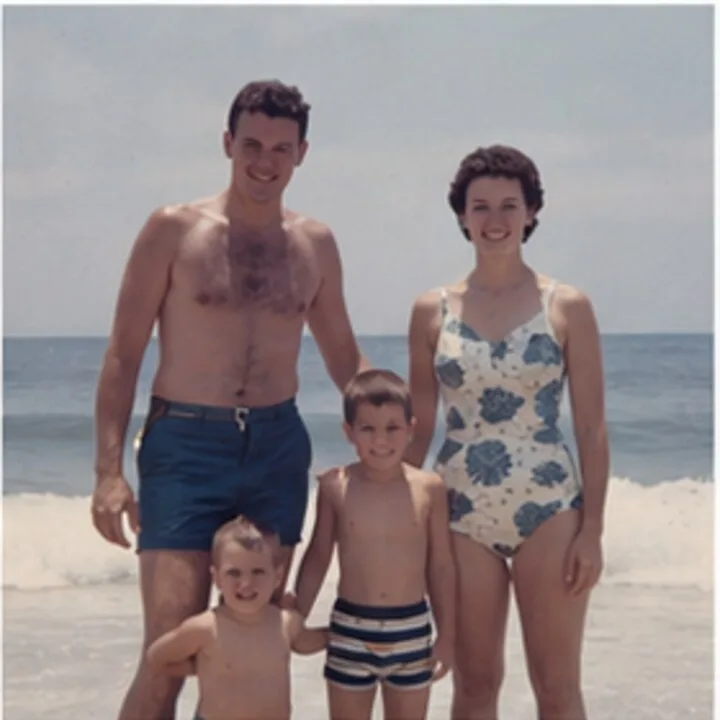
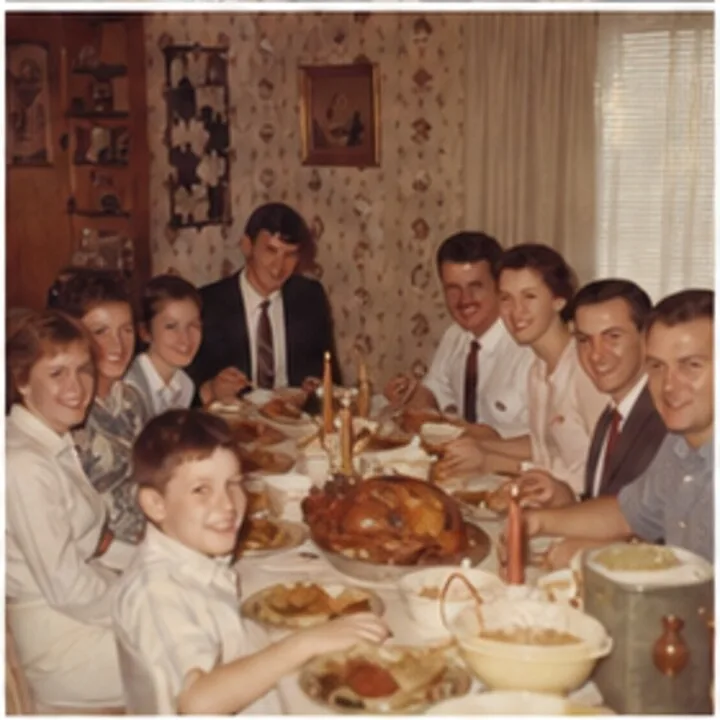
Decades of prints, stacked above last week.
1962
1974
1987
Same assets, no re-upload, back in order.
Quick answer
Immich sorts the timeline by the capture date stored inside each file: the EXIF capture date when one exists, otherwise the file's modified date[2]. A scanner's file carries scan day in both places[6], so decades of prints stack above last week's phone photos. Fix that date and each scan drops into its year.
- By hand in Immich: free, but the date never reaches the file itself[1].
- Before import: write known dates into the files with the free Timeline Tagger app.
- In place: Timeline Scan finds the stuck scans and dates them, originals untouched.
The mechanics
Why Every Scan Lands on Scan Day
-
Paper has no date a computer can read
Handwriting on the back, a lab stamp in the margin, or someone's memory[5].
-
The scanner stamps scan day
Exif's capture date is “the date and time when the original image data was generated”[6]. For a scan, that's scan day.
-
Immich believes the file
No EXIF date? It falls back to the file's modified time[2]. One 35,000-photo import filed thousands under a single March day[4].
DateTimeOriginal before import and the scan lands in its year.Immich doesn't sort by upload date. It sorts by this date, so no amount of re-sorting or searching by date moves a scan. Fix the date itself.
Pick your fix
3 Ways to Fix Scanned Photo Dates in Immich
All three work. They differ in who finds the dates, how many you fix at once, and whether your files change.
| Criteria | Edit dates in Immich | Timeline Tagger (free, by hand) | Timeline Scan |
|---|---|---|---|
| What it is | Immich's built-in date editor | Free Mac and Windows app: type each date beside its back | A dating service that connects to your Immich server |
| Figures out the dates for you | NoYou type every date | NoYou read each one off the back | YesReads backs, lab dates, visual clues and neighboring photos; you review |
| Finds the misdated scans for you | NoYou hunt them down | NoYou work through a folder | YesGathers every scan-day photo into one list |
| Fixes a whole archive at once | PartlyOne date for everything selected; no shift that keeps the spacing[7] | PartlyOne photo at a time, about ten seconds each | YesOne reviewable timeline |
| Writes the date into your actual files | NoDatabase and .xmp sidecar only[1] |
YesEXIF DateTimeOriginal, IPTC and XMP; pixels identical |
Your choiceIn place via the Immich integration (metadata only), or real EXIF/XMP in the folder download |
| Dates survive outside Immich (Apple Photos, Google Photos, backups) | PartlyOnly where the .xmp sidecar travels; the photo still says scan day[1] |
YesThe date travels with the file | YesReal EXIF in the folder download; Google Photos export built in |
| Cost | Free, part of Immich | Free: no account, no photo limit, nothing uploaded | Free trial with no credit card, then per-photo pricing (see pricing) |
Fix #1 · a handful of photos
Edit the Dates by Hand in Immich
The 4 steps in Immich
-
Find the scans
A scanning session sits on one day, usually at the very top of the timeline.
-
Fix one photo
Open it, open the info panel, and click the edit (pencil) control next to the date. Set the date, time and timezone.
-
Or select several
Choose the date-edit action from the selection menu. All of them get the same date and time, with no “shift by N years”[7], so group them by event first.
-
Repeat for every event
One event at a time, through the whole shoebox.
The catch, in Immich's own words: “No, Immich does not modify the original files. All edited metadata is saved in companion .xmp sidecar files and the database.”[1] Download an original, restore a backup, or open the library in an app that ignores sidecars, and the wrong dates come back.
Fix #2 · you know the dates
Write the Dates Yourself with Timeline Tagger Before Importing
How Timeline Tagger works
Our free Timeline Tagger app for Mac and Windows fixes the actual files before they ever touch Immich.
-
Open your scans folder
It shows each photo beside its scanned back.
-
Type the year, press Return
Month and day are optional. About ten seconds a photo; repeating the same year is one keypress and Return.
-
Import into Immich
The scans land straight in the right years.
- The right tags:
DateTimeOriginal(the first real capture-date tag Immich checks[3]), plus the IPTC and XMP dates. - Travels with the file: it survives in Immich, Apple Photos, Google Photos and every backup. Only the metadata changes; the pixels are identical.
- Stamp before importing: Immich detects duplicates by checksum, and a corrected file is no longer byte-identical. Re-uploading it adds a second copy beside the misdated one, so delete those first.
- Still one photo at a time: working out each date is on you, and a thousand scans is most of a weekend. Terminal users can stamp a folder that shares one date with ExifTool in a single command.
Fix #3 · the whole archive, in place
Let Timeline Scan Date Your Library Where It Lives
Through the Immich integration: no re-uploads, no duplicates, originals untouched.
-
Connect your Immich server
URL and API key, stored encrypted and deleted when you disconnect. Only small previews are read; originals never leave your hardware.
-
Your stuck scans are found for you
Every photo still on its scan date, in one list. You pick which to date; real dates are left alone.
-
AI works out each date
From handwriting on the backs, lab-printed dates, visual clues and neighboring photos. You review and adjust the timeline.
Weighing tools? How it compares to MyHeritage PhotoDater.
-
Everything writes back in place
The date (locked so Immich won't overwrite it), the handwriting as a searchable description, upright rotation and tagged people, onto the same assets.
Metadata only: originals are never modified, the same rule Immich itself follows[1]. See what syncs to Immich.
-
Want the dates inside the files?
Take the folder download instead: real EXIF/XMP capture dates[6] that Immich reads on import. How the date fixing works.
-
Family who won't run a server?
Keep the same dated scans in Family Library ($39 a year or a small monthly fee), alongside your Immich copy. Up to 20 invited relatives browse and help add names, dates, places and notes.
Common questions
Scanned Photo Dates in Immich: FAQ
Why do my scanned photos show the scan date in Immich?
Because scan day is the only date the file knows. A scanner makes a brand-new file, and Immich sorts by the capture date in each file's metadata. With no date at all, it falls back to the file's modified time[2]: scan day again, or the day the files were copied to the drive[4].
So a print from 1975 files itself at the top of your timeline. The photo isn't wrong; the metadata inside the file is.
Which date does Immich use to sort the timeline?
The EXIF capture date when one exists, otherwise the file's modified date, not the upload date[2]. Within EXIF, Immich checks the tags in this order: SubSecDateTimeOriginal, DateTimeOriginal, SubSecCreateDate, then CreateDate[3]. Writing the real date into DateTimeOriginal before import is the most reliable way to control where a scan lands.
How do I change the date of a scanned photo in Immich?
Open the photo in the Immich web app, open its info panel, and click the edit (pencil) control next to the date. Set the new date, time and timezone.
For several at once, select them and use the date-edit action from the selection menu. Immich applies the same single date and time to everything selected; there's no option to shift a group while keeping the gaps between photos[7].
Either way, you must already know each real date, and the edit is stored in Immich's database and an .xmp sidecar, not in the photo file itself[1].
Does editing a date in Immich fix my actual photo files?
No. Immich's own FAQ says: “No, Immich does not modify the original files. All edited metadata is saved in companion .xmp sidecar files and the database.”[1] So the file itself still carries the scan date.
Download the original, restore a backup, or open the library in an app that doesn't read sidecars, and the wrong date comes back. Only rewriting the EXIF inside the file (with the free Timeline Tagger app or Timeline Scan's corrected download) makes the fix travel with the photo everywhere.
Should I fix the dates before or after importing scans to Immich?
Before, if you can. A real date in each file's EXIF DateTimeOriginal field is read by Immich at import[3], and by every other photo app, forever.
Already imported? You don't have to start over. Timeline Scan's Immich integration finds the photos stuck on their scan date, works out each real date, and writes it onto the same assets in place: metadata only, originals untouched, no re-upload.
Can Timeline Scan fix the dates without re-uploading my library?
Yes. Connect your self-hosted Immich server with an API key. Timeline Scan reads small previews for analysis; full-size originals never leave your server.
It gathers the photos stuck on their scan date into one list and estimates each real date from handwriting on the backs, lab-printed dates and visual clues. After you review the timeline, it writes the corrected date (locked so Immich won't overwrite it), handwriting notes, rotation and tagged people back onto the same assets[1].
Original files are never modified, the same rule Immich itself follows. Details on the Immich integration page.
Will corrected files create duplicates in Immich?
They can, if you re-upload. Immich recognizes duplicates by file checksum, and a file with corrected EXIF is no longer byte-identical, so it uploads as a new asset beside the misdated one.
Dating files yourself with Timeline Tagger? Do it before the first import, or delete the misdated copies before re-uploading. Timeline Scan's Immich integration avoids the problem: it writes dates onto the assets already in your library, so nothing is uploaded twice.
Show your work
Sources
The 7 sources behind this page
- Immich documentation: FAQ (accessed July 6, 2026). States: “No, Immich does not modify the original files. All edited metadata is saved in companion .xmp sidecar files and the database.” See also the XMP sidecars feature page.
- Immich GitHub Discussion #1947: “document how dates are determined for photos / videos in timeline”. Maintainer answer: at first backup the date is the file's creation date; the metadata-extraction pipeline then uses the EXIF creation date; “if none are available, then it will fall back to the modified date.”
- Immich GitHub Discussion #12292: “[BUG] Wrong Date but Exif good”. Documents the EXIF tag priority Immich uses for the capture date (
SubSecDateTimeOriginal,DateTimeOriginal,SubSecCreateDate,CreateDate) and the long tail of wrong-date-on-import reports. - Immich GitHub Discussion #7654: “Dates importing incorrectly (or not at all)”: a 35,000-photo import in which roughly 4,000–5,000 files arrived with wrong or missing dates, many filed under the day the files were moved to the drive.
- Fstoppers: “[Stats] How Many Photos Have Ever Been Taken?”: coverage of the widely cited 2011 estimate by photo-archiving startup 1000memories that roughly 3.5 trillion photographs had been taken since the invention of photography, the overwhelming majority on film.
- CIPA standard DC-008 (Exif), Standardization: Camera & Imaging Products Association. Defines the Exif capture-date field
DateTimeOriginalas “the date and time when the original image data was generated.” For a scanned print, the image data is generated by the scanner, on scan day. - Immich GitHub Discussion #10235: “How to Pictures / Albums Date and Time offset in bulk”: confirms the web UI's bulk edit sets one date, time, and timezone for every selected photo, with shift-by-offset editing still an open feature request.
Immich behavior on this page was checked against Immich's public documentation and GitHub discussions on July 6, 2026. If something here has gone out of date, tell us and we'll correct it.
Immich is an open-source project; its name belongs to the Immich project (FUTO). Timeline Scan is an independent service and is not affiliated with, endorsed by, or sponsored by Immich or FUTO.
Watch Your Timeline Snap Into Order
Start with free photos, no credit card required. Connect your Immich server, watch your own scans get their real dates back: in place, originals untouched.
Try Photos Free