An iPhone
Running iOS 17 or newer. The library scan, the count, and the price estimate are all free: before you even create an account.
Apple Photos · iPhone App
The Timeline Scan app finds the scanned photos stuck on the day they were digitized, dates them, and changes each photo’s date right on your iPhone, in place in your Apple Photos library. No exporting, no re-importing, no duplicates.
Both directions, carefully
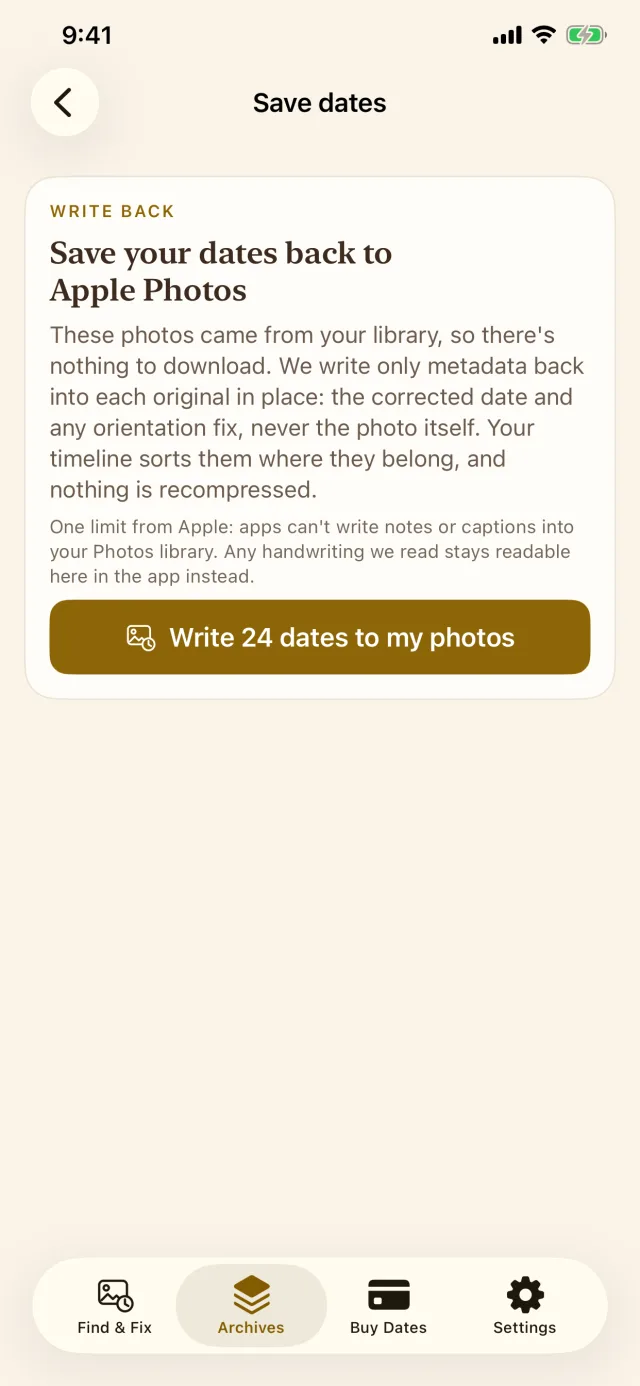
The app reads your library's dates right on the phone. For the photos you choose, it sends only a small preview copy for dating: your full-size originals never leave your iPhone.
Only each photo's date fields change.
When dating finishes you get a push notification: the dates can even land while the app is in the background.
No hunting required
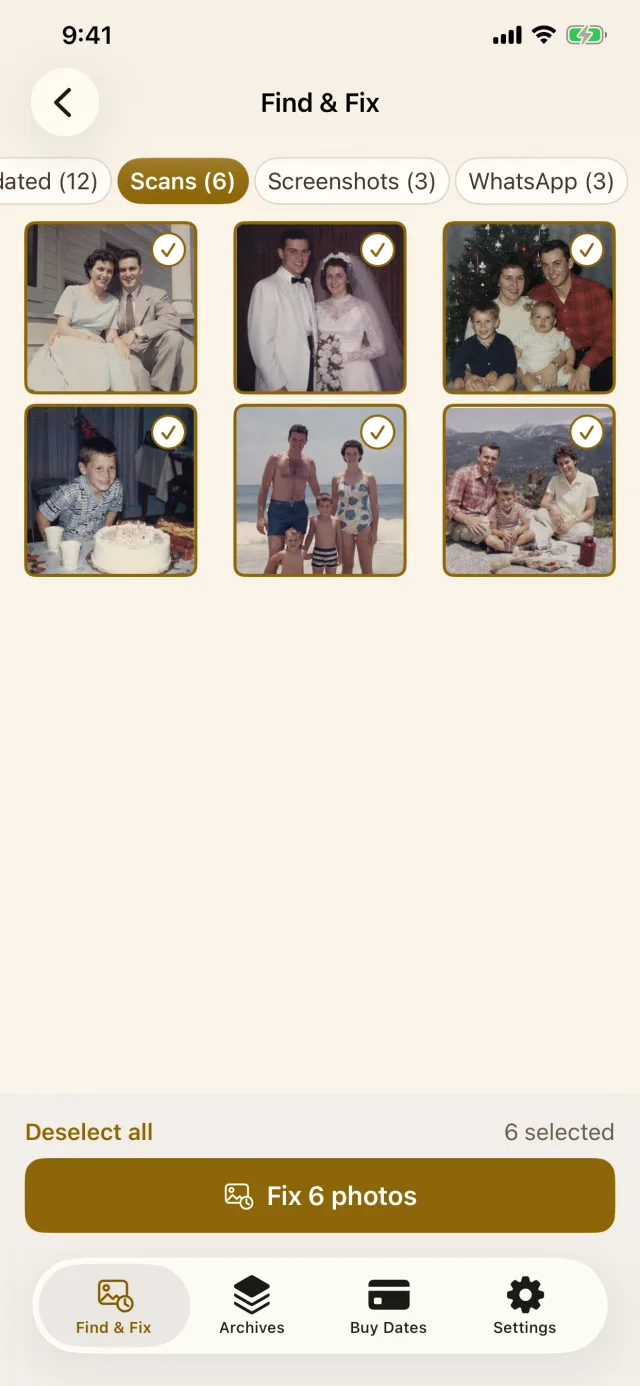
Scanned photos rarely know when they were taken. They carry the day they were digitized, so a print from 1987 files itself under 2019, buried between last week's screenshots. The app combs your library right on the device and gathers those stuck photos into one list.
On-device scan
8,942 photos checked · 214 stuck on their scan date
Every flagged photo lands in one list, already sorted. Tap the ones you want dated: the count and the price are clear before anything leaves your phone.
Screenshots, WhatsApp saves, and GIFs get sorted into their own buckets: nothing is dated unless you opt it in. The scan runs on your phone, and it's free before you even create an account.
New here? Start with changing a photo's date on iPhone, or read the full guide to fixing scanned photo dates.
The manifest
Two dates, written onto the exact photos you picked, and a longer list of things we will never touch.
Updated on each photo
The photo's timeline date is set to the real day, so a print from 1987 jumps from 2019 back where it belongs: in the library grid, in search, in Memories.
The corrected date is also written into the photo file itself (EXIF), without recompressing a single pixel. It travels with the photo through shares, exports, and backups.
Never touched
Never uploaded. Only a small preview of each photo you pick leaves the phone, just long enough to be dated.
The image is never re-encoded, resized, or replaced. Same photo, same quality: only the date fields change.
Apple doesn't let any app write a caption or note onto a photo in your library. Handwriting we read still sharpens the dating and stays readable in your Timeline Scan archive; it just can't be written into Apple Photos.
Edited or deleted something while we were dating it? We notice and skip it rather than guess.
After the fix
Open a fixed photo in the Photos app and swipe up. Point at a number to see where it lands.
The photo now sits in its real year. No more opening “Adjust Date & Time” two hundred times by hand.
Written into the photo itself, so the date survives sharing, exporting, and any backup that leaves iCloud.
Your photo is never re-encoded or replaced. The pixels are untouched: only the date fields changed.
The header above the photo, the library grid, widgets, and Memories all pick up the new date instantly.
Illustrative recreation of the Photos info panel on iPhone, using a sample generated family photo.
About the people in them
What the app can do
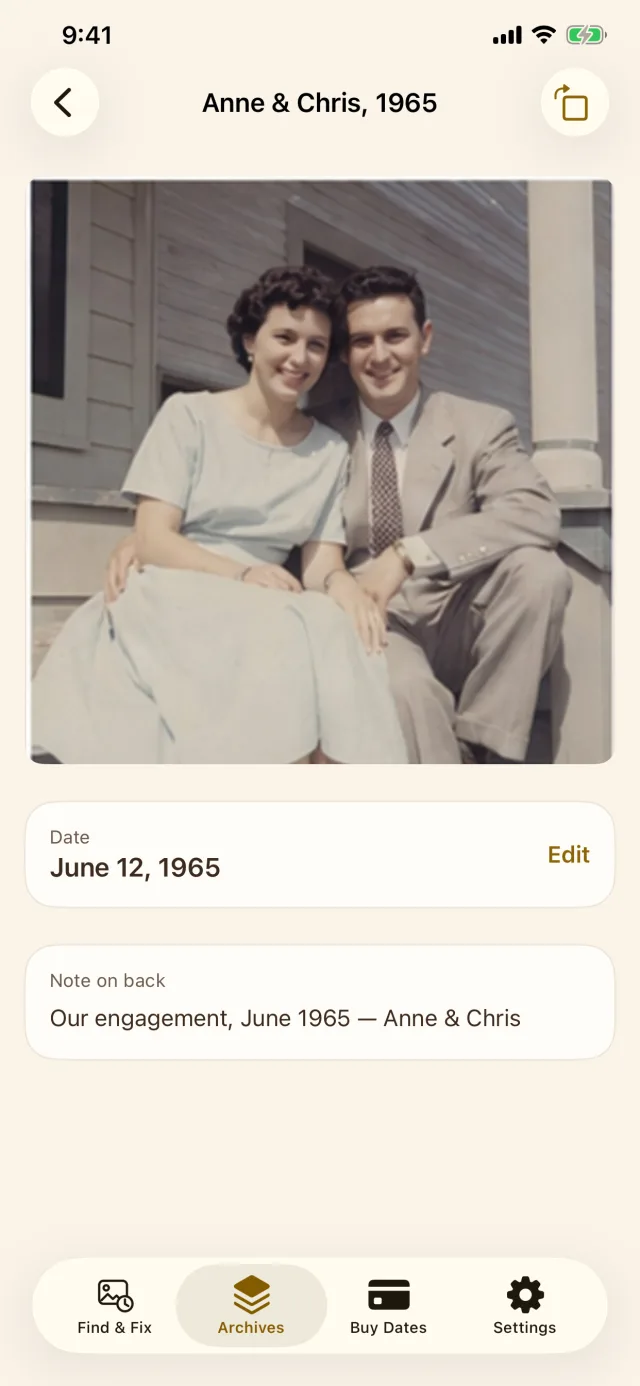
Flip on “Also tag people” and the previews are scanned for faces. Name each person once.
A face with a birth year anchors a whole batch of photos.
Names, and any handwriting read from the backs, stay with your Timeline Scan archive in the app and on the web.
What Apple allows no app to do
We can't import the names Photos already knows, and we can't push names back into it.
Apple gives apps no way to save a caption or note onto a library photo.
That's the honest shape of it: names and notes do their work in the dating and stay with your archive, just not inside Apple's own albums.
Good to know
Running iOS 17 or newer. The library scan, the count, and the price estimate are all free: before you even create an account.
Free on the App Store. You only pay for the photos you choose to date, same pricing as the web.
The app asks for library access to run the scan. Everything stays on your phone until you pick the photos to send for dating.
More ways to get your photos back
Relatives on Android or Windows? Family Library hosts the dated photos for $39 a year or a small monthly fee, and up to 20 invited relatives see the same timeline from any computer or phone and help add names, dates, places and notes.
Want them side by side? Compare what every option keeps.
Start with free photos, no credit card required. The library scan itself costs nothing.
Get the iPhone AppApple, iPhone, and Apple Photos are trademarks of Apple Inc. The Photos info panel above is an illustrative recreation; the iPhone frames show real screenshots of the Timeline Scan app with sample photos. Timeline Scan is not affiliated with or endorsed by Apple.