You have the scans
Your paper photos are now digital files.
After photo scanning
Photo scanning services turn boxes of pictures into digital files. Timeline Scan helps put those photos back in the order they happened, so you can browse them like the photos on your phone.
No special software. No subscription. Built for families, not photo experts.
Scanning was step one
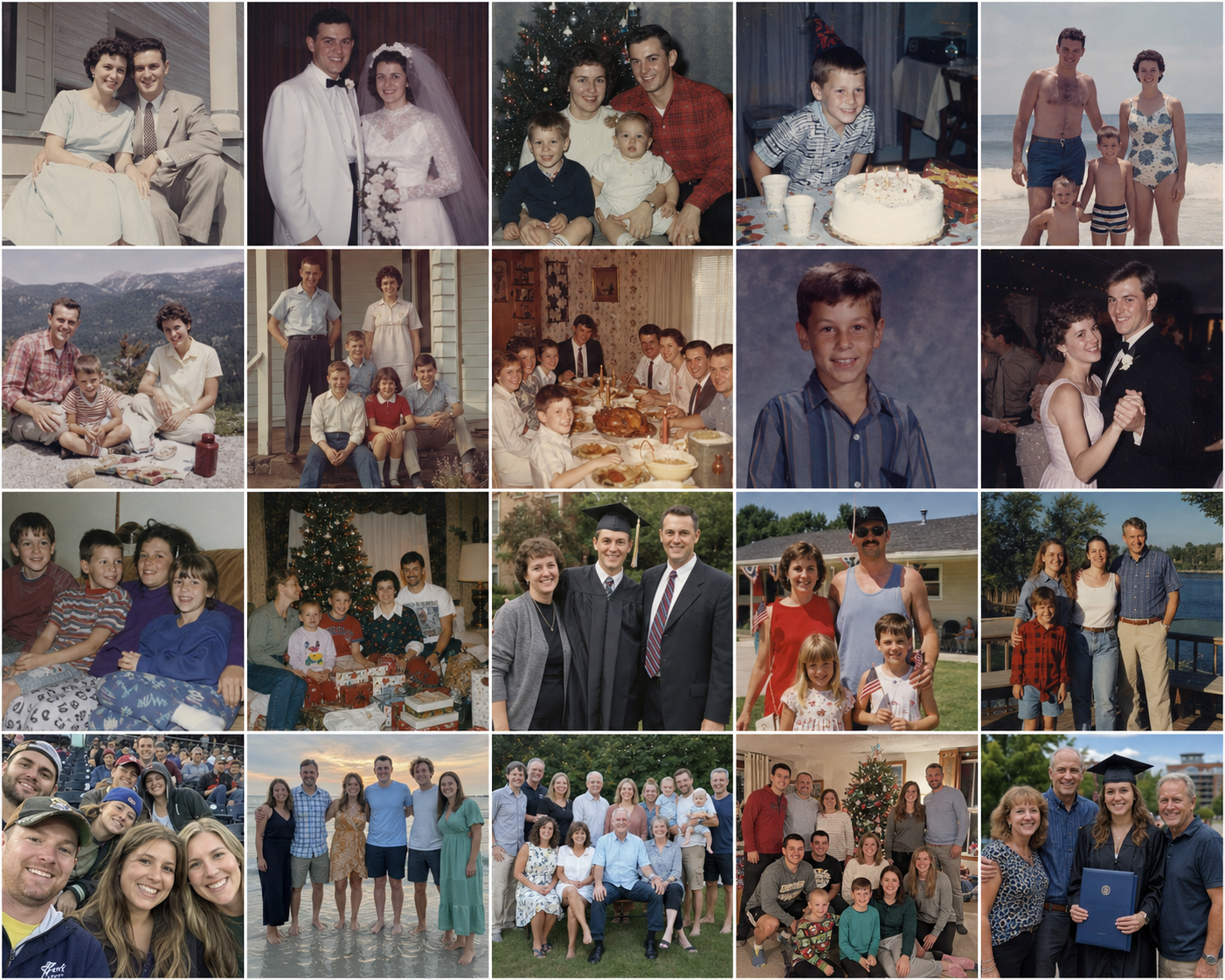
A scanning service gives you digital photos. But it usually does not know when every birthday, vacation, wedding, school photo, or holiday actually happened. That means your finished scans can still feel like a giant pile of files.
If you are trying to organize digitized photos after a big family project, Timeline Scan is built for that after-scanning step.
Your paper photos are now digital files.
A download, folder, or USB drive can still be hard to browse.
We help place the photos near the years they were actually taken.
The common after-scanning problem
Adding scanned photos to Google Photos or Apple Photos ends up grouping the photos around the day the files were created instead of the years your family remembers.
How Timeline Scan finishes the job
Start with the folder, download, USB drive, or photo files from your scanning service.
It looks at handwriting, printed dates, faces, clothing, cars, folder names, and nearby photos.
Download your photos or send them to Google Photos so they appear closer to the right years.
Not a scanning service
Timeline Scan does not scan paper photos. It helps organize the digital photos you already received. Use it after your scanning project to make the finished files easier to browse, search, and enjoy.
It is a practical answer for what to do with digitized photos when you have a scanned photos downloaded, scanned photos on USB drive, or a cloud folder that still feels unfinished.
Best results when
Photos that were near each other in a box or album often belong near each other in time.
Handwriting, dates, names, and places can help Timeline Scan make better guesses.
Folder names like “Grandma album” or “Christmas 1980s” can help.
If you know who appears in the photos, birth years can help narrow down the timeline.
Start small
Start with 5 free photos and see how Timeline Scan works before processing a full family archive.
After-scanning FAQ
No. Timeline Scan is for after scanning. Use it when you already have digital photo files and want them organized into a timeline.
Digitizing turns paper photos into files. Timeline Scan helps make those files easier to browse by placing them closer to when the memories happened.
In most cases, yes. Timeline Scan works with common photo files like JPEG and TIF.
No. Timeline Scan keeps the picture itself unchanged. It updates the date information your photo library uses to place the photo.
Yes. You can download your corrected photos and upload them yourself or send them to Google Photos directly from your account.
For many old photos, the exact day is impossible to know. The goal is to place photos near the right year or era so your family timeline makes sense again.
After digitizing photos, the next step is making them easy to browse, search, and share. Try a few files first and see what Timeline Scan can do with your digital family photo archive.
Try 5 Photos Free